





Thousands of customers are complaining that the network is down and that mobile data services are not functioning as a result of Airtel’s significant outage throughout India.
The outage is particularly well-reported in Bengaluru, Mumbai, and Delhi-NCR.
Airtel Outage Hits Major Indian Cities: Users Face Network, Data, and Call Issues
Widespread annoyance results from customers’ inability to use necessary apps, make calls, or access the internet.
In an attempt to find answers, people are searching online more frequently for terms like “is Airtel down today,” “Airtel network issue,” and “Airtel not working.”
As of yet, the company has not verified the precise reason behind the unexpected network outage.
In Hyderabad, Bengaluru, Mumbai, Delhi-NCR, and other major cities, subscribers complained that mobile networks were either spotty or nonexistent.
Problems were initially detected by users when their mobile data stopped functioning, then call drops, and in certain places, total signal outages.
Regarding the outage, Airtel has not provided a comprehensive explanation.
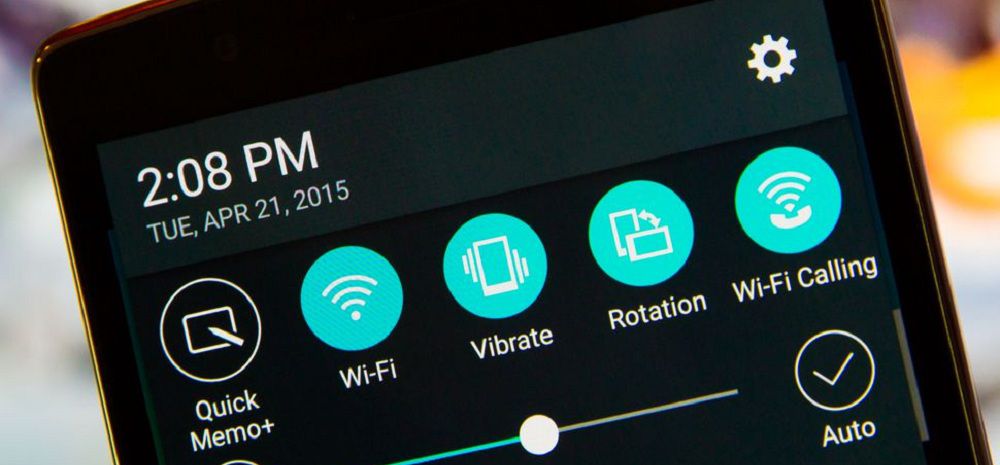
Wi-Fi calling, which is supported by Airtel and compatible with the newest iPhones and Android phones, is an option for users who need to make urgent calls.
In order for calls to be routed over the Wi-Fi network rather than mobile towers, Wi-Fi calling needs to be enabled in the phone’s settings.
Airtel’s system connects the call via the internet, so the recipient does not need to have Wi-Fi calling enabled.
Wi-Fi calling allows regular voice calls to be placed and received on an Airtel number even in the event that mobile signals are lost but Wi-Fi is operational.
How to Enable Wi-Fi Calling on iOS and Android
To enable Wi-Fi calling on iPhone (iOS):
- Open Settings.
- Go to Mobile Data (or Cellular).
- Tap Wi-Fi Calling.
- Turn on Wi-Fi Calling on This iPhone.
- Confirm emergency address if prompted.
- Once enabled, “Airtel Wi-Fi” or “Wi-Fi” will show in the top bar when calling over Wi-Fi.
To enable Wi-Fi calling on Android (steps vary slightly by brand):
- Open Settings.
- Go to Network & Internet or Connections.
- Select Mobile Network (or SIM & Network).
- Look for Wi-Fi Calling and turn it on.
- On some devices, it is under Calls > Wi-Fi Calling.
- On Samsung phones: Settings > Connections > Wi-Fi Calling.
When active, a Wi-Fi calling icon typically appears next to the signal bars.
Tip: Ensure your phone is connected to a stable Wi-Fi connection (such as home broadband) to prevent calls from failing if Airtel’s mobile network remains down.